Product & UX · 4 min read
CoCap
A native macOS app that turns large local video files into editable captions, without uploading anything.
TL;DR
- Problem
- I needed realistic caption samples to test SubLime Captions. My own footage ran 20 to 40 GB per file, and in the browser a 30 GB upload took over an hour while long audio crashed the tab.
- Solution
- A native Mac app that transcribes on device, 30 seconds at a time, and puts each finished slice of captions into the player while the rest is still running.
- Result
- Released free and open source on GitHub. Memory stays around 150 MB whatever the file size, and nothing leaves the Mac.
- Role
- Solo product designer and builder: product strategy, interaction and SwiftUI implementation
- Timeline
- January to July 2026
- Platform
- macOS 14+ on Apple silicon
- Tools
- Swift, SwiftUI, Codex, Google AI Studio, Material Design 3
- Status
- Released on GitHub (v2.0.2)
- ~150 MBof memory during transcription, for a 50 MB voice memo or a 40 GB camera master (Case 2)
- 2.8 sto transcribe a 30-second window on an M3 Max, a real-time factor of 0.09 (Case 2)
- 20–40 GBraw camera files and multi-track interviews that broke the browser version (Case 1)
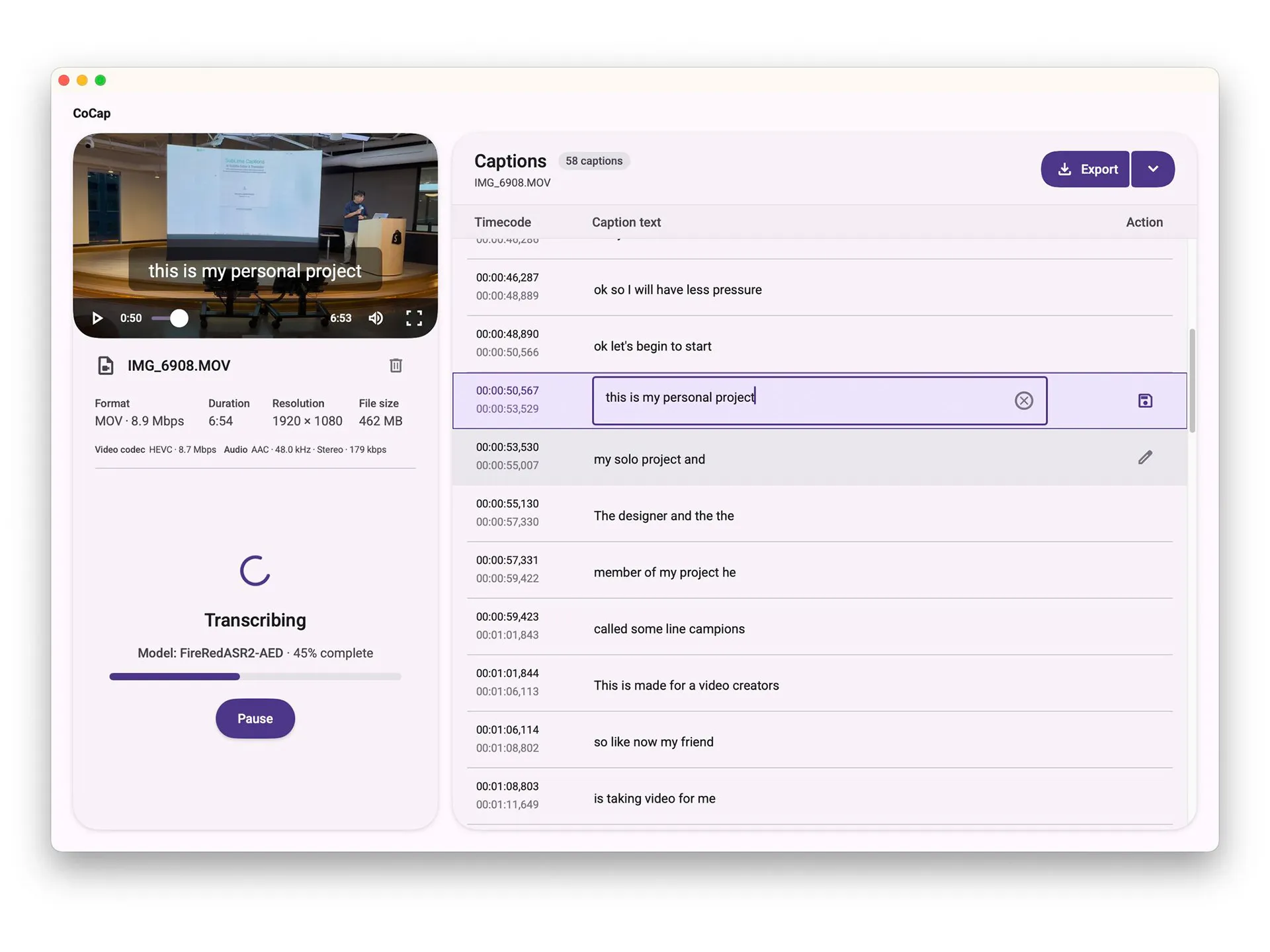
CoCap started as a test utility for SubLime Captions and became a Mac app of its own. It transcribes local audio and video on device and gives you captions you can edit and export as SRT, VTT or TXT. I designed and built it alone, in SwiftUI with Codex. It runs on a 40 GB camera file with about 150 MB of memory, and the media never leaves the computer.
Context
While building SubLime Captions, a web tool that proofreads and translates subtitles, I kept needing large batches of subtitle samples with realistic speech-recognition errors. Converting files and collecting transcripts one by one was slow, so I decided to build a small tool that could make them on demand.
I made the first prototype in Google AI Studio. Giving the model speaker names and topic tags noticeably cut transcription errors. That was promising enough to move the project into Codex, add real file handling, and try it on longer media.
Case 1 · I rebuilt CoCap as a native Mac app when real footage broke the browser
- Question
- How do I get files of 20 to 40 GB into a caption tool?
- Options
- Keep the web app and write chunked-upload scripts to keep the browser alive; or rebuild CoCap as a native macOS app that reads files from the local disk.
- Trade-off
- Chunked uploads would still send unreleased footage through a network and a cloud API, with the wait, the privacy question and the cost that come with it.
- Decision
- A native macOS app. When media stays on the local disk, the bandwidth and privacy problems go away.
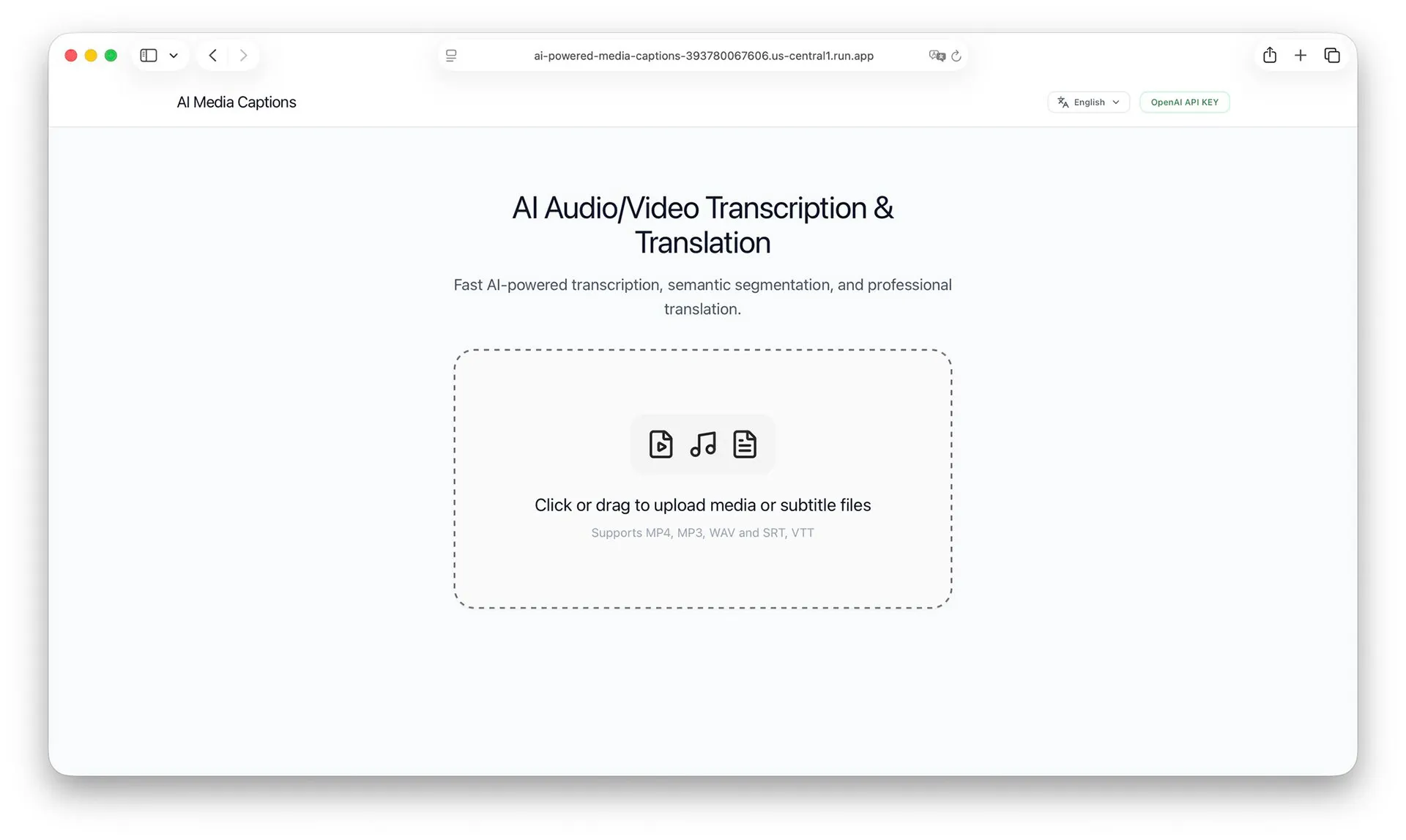
Short clips worked in the browser. Then I tested with footage I had filmed before: raw 4K camera files and multi-track interviews that often weighed 20 to 40 GB. At that size the browser failed almost everywhere.
Uploading a 30 GB file on home broadband took over an hour, and a dropped connection meant starting again. When the browser tried to process long audio itself, the tab ran out of memory and crashed. Unreleased footage would have sat on a third-party cloud, and running commercial cloud APIs on hours of high-definition video got expensive fast.
CoCap now only goes online once, to download the speech model when you set it up. After that, transcription, editing and export all work offline, and media, captions and exports are never uploaded. It has no account system, analytics or telemetry.
Case 2 · Captions reach the player before the file is finished
- Question
- How does a laptop transcribe a multi-hour recording without running out of memory?
- Options
- Load the whole audio track and transcribe it in one pass; or stream the file in 30-second windows and show each result as soon as it is ready.
- Trade-off
- Loading everything at once makes memory grow with the file, and the editor sees nothing until the whole file is done.
- Decision
- A 30-second streaming pipeline. Memory stays flat, and finished captions go straight into the player.
Moving offline removed the network bottleneck and brought in a new limit: the computer’s memory. I benchmarked several speech models on Apple silicon, comparing transcription quality on Mandarin and English audio against memory use and launch time. I chose an on-device model that runs on the Mac’s GPU through Apple’s Metal Performance Shaders. On an M3 Max it transcribes a 30-second window in 2.8 seconds, an average real-time factor of 0.09.
Thirty seconds at a time
CoCap reads the video with Apple’s own AVFoundation decoders and holds only the current 30-second slice of audio plus the next one in memory. Memory stays around 150 MB whether the input is a 50 MB voice memo or a 40 GB camera master.
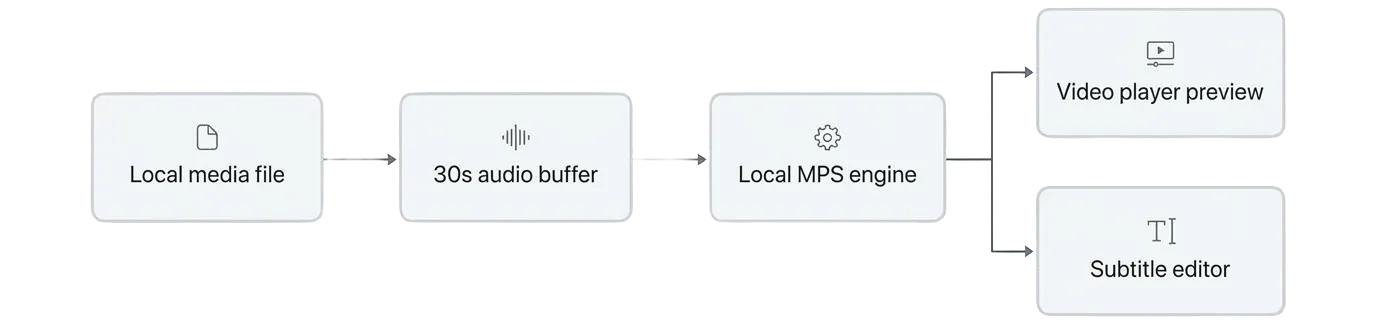
Streaming also means editors don’t have to wait. Most transcription software makes you wait for the whole file before it shows any text. CoCap puts each finished slice into the video player right away, so an editor can scrub back and check the first scene while the rest of the file is still transcribing.
Cuts where people breathe
People rarely speak in neat sentences, and a hard cut every 30 seconds would split words in half. CoCap uses voice activity detection to find pauses and overlaps neighbouring chunks slightly, so syllables aren’t clipped and caption breaks land where the speaker takes a breath.
Pause keeps what’s done
Stopping a long job shouldn’t throw away finished work. Pause shows “Pausing transcription…” while the engine finishes its current slice. After that, every completed caption stays editable and can be exported while the rest waits.
Case 3 · Three punctuation choices replace the model settings
- Question
- What should a video editor be able to adjust?
- Options
- Expose the speech model's settings, such as temperature and beam width; or offer only the choice editors make anyway, how punctuation looks on screen.
- Trade-off
- Editors rarely know what the model settings do, and the result they care about is the text on screen.
- Decision
- Three plain-language punctuation options. The model's mechanics stay hidden.
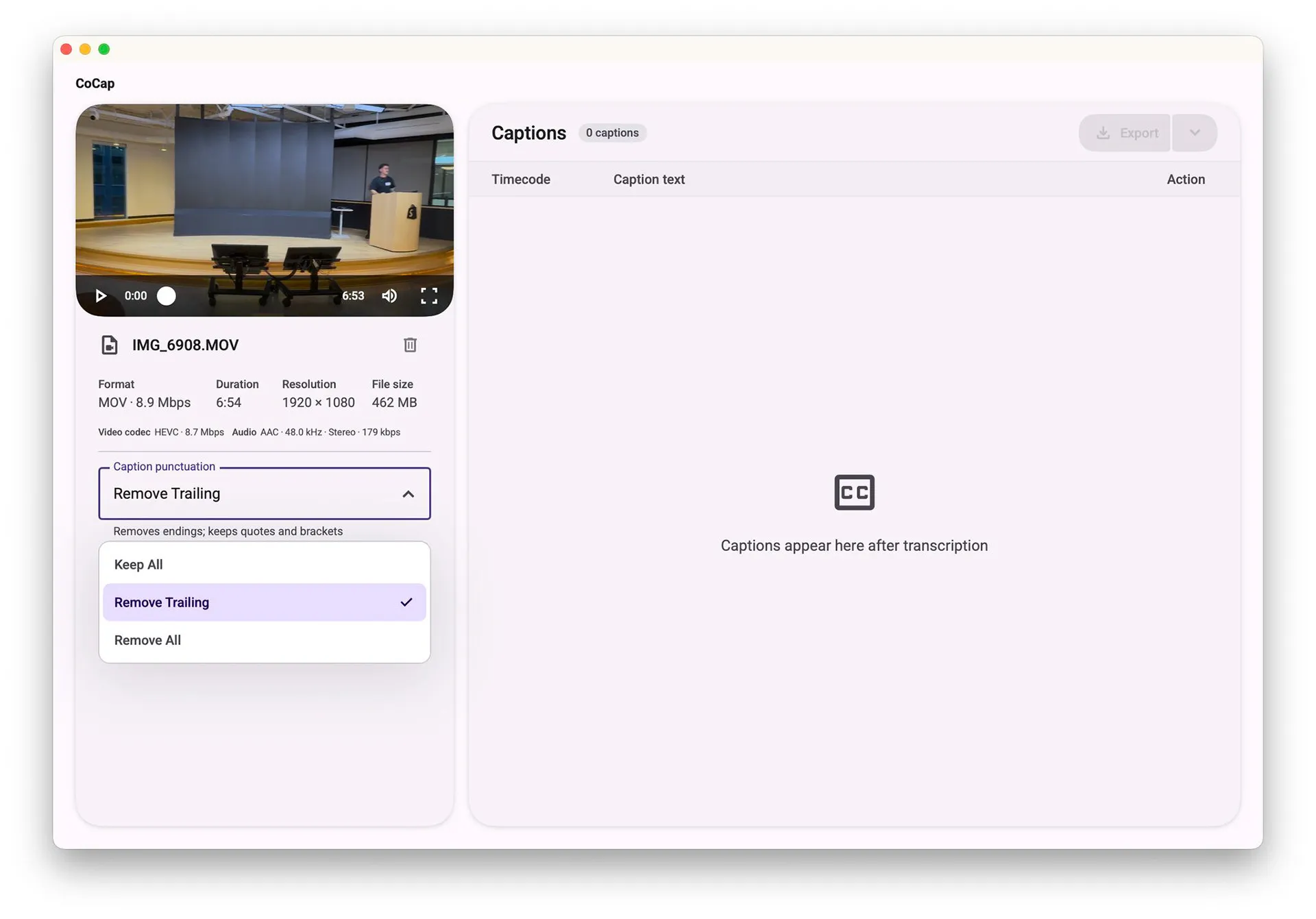
Keep All keeps full punctuation, for narrative scripts. Remove Trailing drops the full stop or comma at the end of each caption, following broadcast subtitle conventions. Remove All gives unpunctuated text for fast social clips. A one-line description under the menu says what the current choice does.
A Mac app built on Material Design 3
Writing interface code with an AI assistant tends to drift: padding and colours change from one view to the next. I gave Codex Google’s Material Design 3 as its guide. MD3 has explicit rules for type scale, surface elevation and tonal colour roles, and those rules kept the generated SwiftUI consistent from one revision to the next.
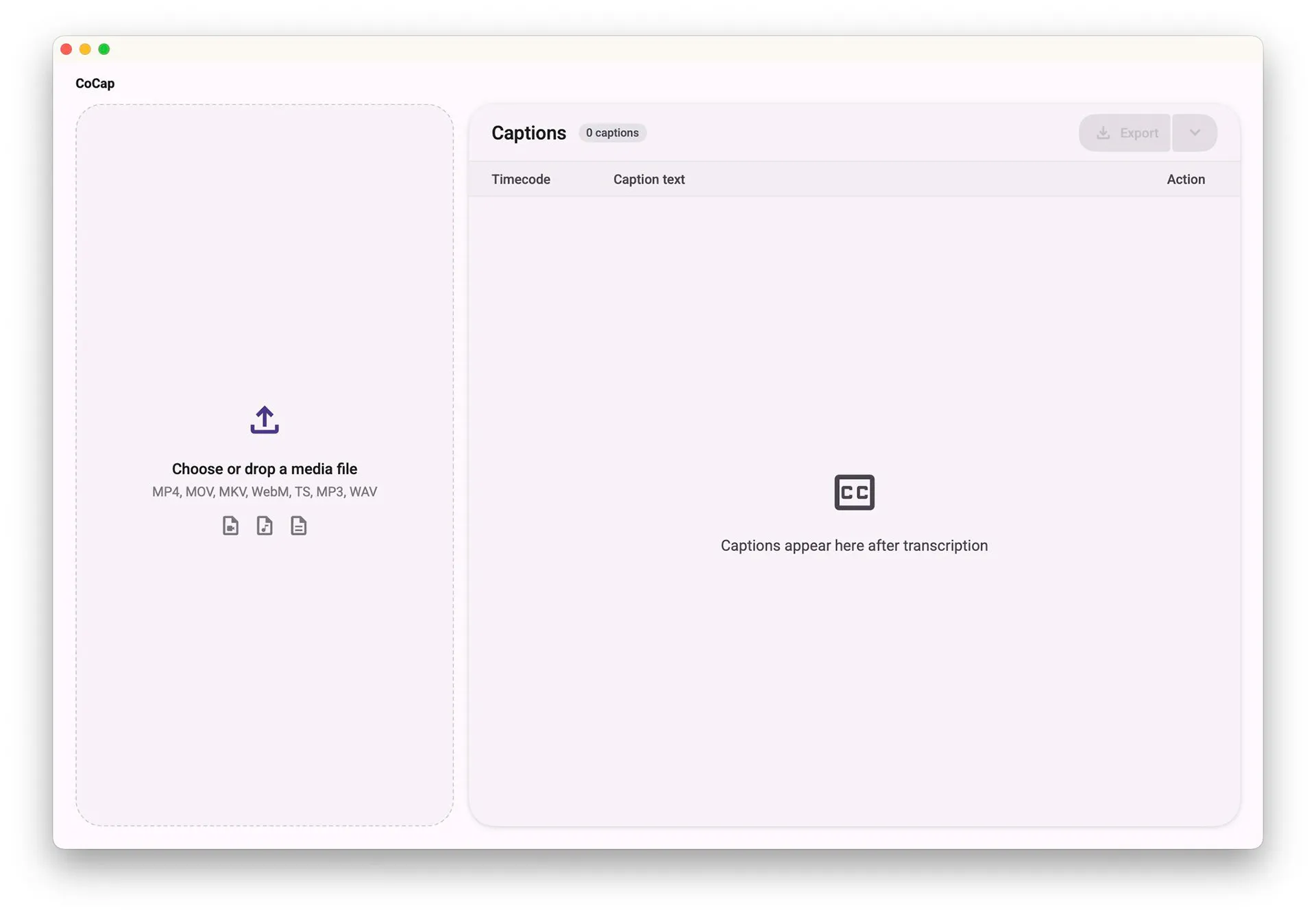
I adapted the MD3 surfaces to feel at home on macOS. CoCap uses a unified title bar, the system file pickers and standard shortcuts, such as Space to play. The layout is one split view: the video and its details on the left, the caption document on the right.
First-time setup happens in that same window. If the speech model is missing at launch, the media panel shows a download card with a progress bar, and every file is checked against its checksum before it is installed. When the download finishes, the drop zone takes the card’s place, so there is no separate setup wizard.
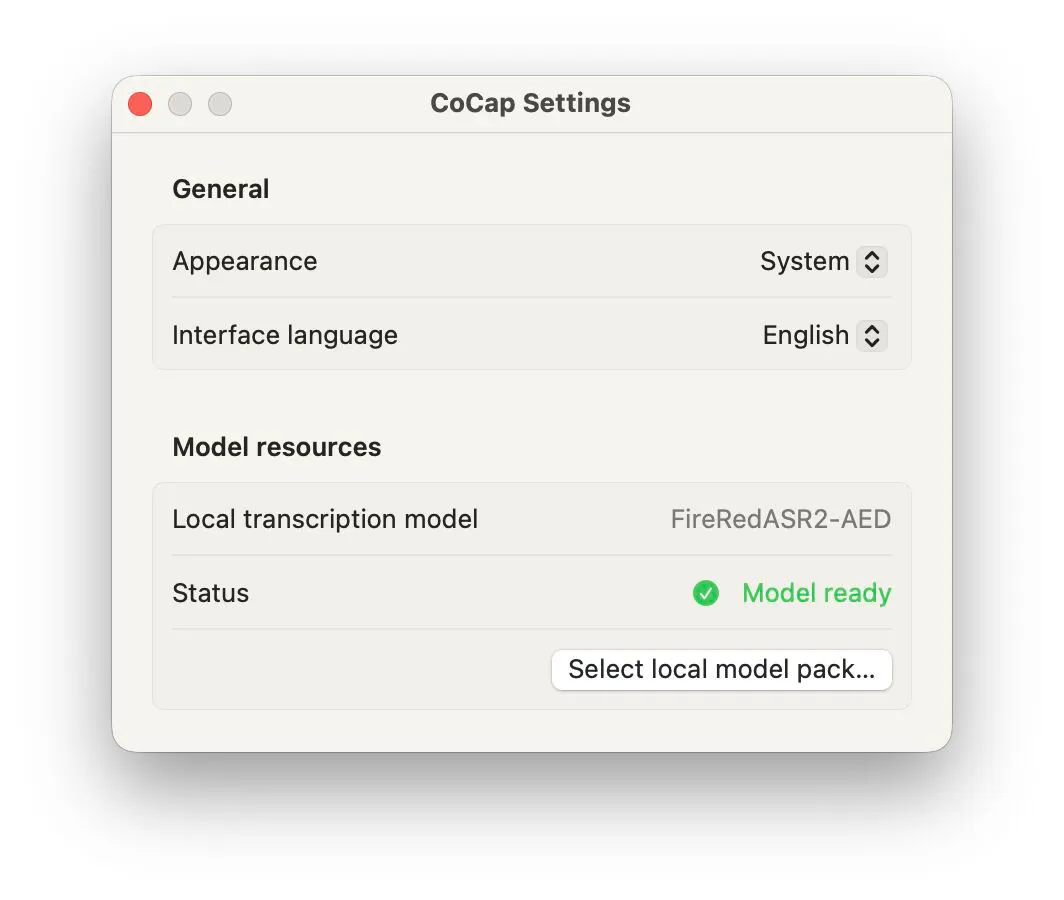
Settings that are not part of the editing work live in a standard macOS settings window: appearance, interface language and the state of the local model.
How I built it
I didn’t draw mockups in Figma for CoCap. Working alone, static screens felt like extra overhead when I could change the SwiftUI code directly with Codex and try the result on a real file.
I wrote the code with Codex. My part was deciding what to build and checking the result: choosing native over web, running the model benchmarks and picking the model, setting the 30-second memory limit, and deciding what editors see and what stays hidden. MD3 tokens gave Codex concrete limits for type, spacing and colour, so I could ask for fast changes without the interface coming apart.
Outcome
CoCap is released free on GitHub under the MIT licence, currently at version 2.0.2, for macOS 14 or later on Apple silicon. The first model download is about 5.6 GB. After that, the app works fully offline. The build is ad-hoc signed and not yet notarized by Apple, so macOS asks the user to approve it on first launch.
There is no usage data yet. CoCap has no analytics by design, so feedback will have to come from GitHub issues and from editors I can talk to directly.
Reflection
Pairing an AI coding assistant with an explicit design system worked much better for me than starting from visual mockups. The system gave the AI limits to work inside, and the running app gave me something real to judge.
The project also showed me the value of sensible defaults. Editors needed control over how captions look on screen, so I put the model’s settings out of sight and gave them three punctuation options.
What’s next
I want to ship a Developer ID signed and notarized build, so installing CoCap doesn’t need a trip to System Settings. Then I’d like to test it with video editors working on their own footage.